
GDI
Capture the Screen or a Window in MFC with BitBlt: Invisible Borders, CAPTUREBLT, and PrintWindow
To capture the screen or a window in MFC, copy from the screen DC into a bitmap selected into a memory DC with BitBlt. If you use the rectangle from GetWindowRect as it is, a strip of whatever is behind the window can appear on its left, right, and bottom edges. A window that sits on top of the one you capture also appears in the image. To get only the window itself, without what covers it, use PrintWindow.
Five ways to capture the same window
The dialog below captures an “Inspection Result” window in five ways. A yellow ordinary window covers its lower left, and a translucent window (WS_EX_LAYERED) covers its upper right.
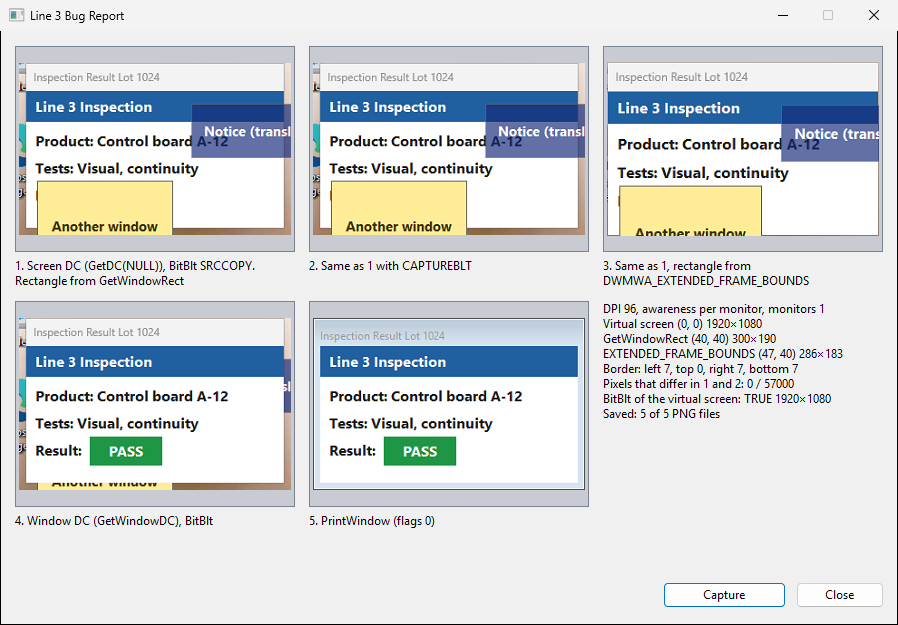
| Panel | How it captures | Result |
|---|---|---|
| 1 | BitBlt (SRCCOPY) from the screen DC, rectangle from GetWindowRect |
7 pixels of background on the left, right, and bottom. Overlapping windows appear |
| 2 | Same as 1, plus CAPTUREBLT |
Same as 1 (every pixel has the same color) |
| 3 | Same as 1, rectangle from DwmGetWindowAttribute with DWMWA_EXTENDED_FRAME_BOUNDS |
Only the visible window. Overlapping windows appear as they do on screen |
| 4 | BitBlt from the window DC (GetWindowDC) |
Inside the frame, the window’s own pixels without the overlapping windows. The 7-pixel border shows the background |
| 5 | PrintWindow (flags 0) |
Only the window. Overlapping windows do not appear. The border area is filled with the frame color |
To capture what the user sees, use panel 3’s method. To capture the window alone, use panel 5’s.
Copy from the screen DC with BitBlt
GetDC returns a DC for the entire screen when you pass NULL as the window handle. In MFC, CClientDC does the same: its constructor calls ::GetDC with the handle of the CWnd you pass, so CClientDC(NULL) gives the screen DC, and its destructor calls ReleaseDC. Create a memory DC and a bitmap compatible with it, and pass the screen coordinates of the area’s upper-left corner as the source position of BitBlt.
// Copies a rectangle in screen coordinates from the screen DC into a bitmap
static BOOL CaptureScreenRect(CBitmap& bmp, const CRect& rect, DWORD dwRop)
{
    CClientDC dcScreen(NULL);       // DC for the entire screen
    CDC dcMem;
    dcMem.CreateCompatibleDC(&dcScreen);

    bmp.DeleteObject();
    bmp.CreateCompatibleBitmap(&dcScreen, rect.Width(), rect.Height());
    CBitmap* pOldBitmap = dcMem.SelectObject(&bmp);

    const BOOL bResult = dcMem.BitBlt(0, 0, rect.Width(), rect.Height(),
        &dcScreen, rect.left, rect.top, dwRop);

    dcMem.SelectObject(pOldBitmap);
    return bResult;
}

// Caller (pWnd is the window to capture)
CRect rect;
pWnd->GetWindowRect(rect);

CBitmap bmp;
CaptureScreenRect(bmp, rect, SRCCOPY);
The function selects the old bitmap back into the memory DC before it returns, so the caller can select bmp into another DC to draw it or save it to a file. Because the source is the screen, the image holds whatever was on screen at that moment, including windows on top of the target (panel 1).
GetWindowRect includes an invisible border
On Windows Vista and later, the rectangle from GetWindowRect may include invisible resize borders. That is why panel 1 has 7 pixels of desktop on the left, right, and bottom. To get the visible bounds, call DwmGetWindowAttribute with DWMWA_EXTENDED_FRAME_BOUNDS.
#include <dwmapi.h>
#pragma comment(lib, "dwmapi.lib")

// Visible frame in screen coordinates. Falls back to GetWindowRect on failure
CRect rect;
if (FAILED(::DwmGetWindowAttribute(pWnd->GetSafeHwnd(), DWMWA_EXTENDED_FRAME_BOUNDS,
    &rect, sizeof(RECT))))
{
    pWnd->GetWindowRect(rect);
}

CBitmap bmp;
CaptureScreenRect(bmp, rect, SRCCOPY);
For the window in the sample, GetWindowRect returned 300 × 190 at (40, 40), and DWMWA_EXTENDED_FRAME_BOUNDS returned 286 × 183 at (47, 40). The left, right, and bottom edges moved in by 7 pixels each, and the top stayed the same. Panel 3 is the capture with this rectangle, and nothing outside the window appears in it.
The same GetWindowRect page notes that, unlike the window rectangle, the extended frame bounds are not adjusted for DPI. In a DPI-unaware process the two rectangles can be in different units, so make the capturing app DPI aware. The sample sets Manifest Tool > Input and Output > DPI Awareness to Per Monitor High DPI Aware (EnableDpiAwareness in the .vcxproj).
CAPTUREBLT and translucent windows
The BitBlt documentation describes CAPTUREBLT as a flag that includes windows layered on top of your window in the image, and says that by default the image contains only your window. A translucent window is a layered window (WS_EX_LAYERED).
Panel 1 does not use CAPTUREBLT, but the translucent window still appears, and all 57,000 pixels match panel 2, which does use it. The documentation does not explain this difference. Because it may depend on the Windows version or display settings, pass SRCCOPY | CAPTUREBLT when the capture should include translucent windows.
Capture only the window with PrintWindow
PrintWindow asks the window to draw itself into the DC you pass. In MFC, call CWnd::PrintWindow.
// Asks the window to draw itself into a memory DC
static BOOL CapturePrintWindow(CBitmap& bmp, CWnd* pWnd)
{
    CRect rect;
    pWnd->GetWindowRect(rect);

    CClientDC dcScreen(NULL);
    CDC dcMem;
    dcMem.CreateCompatibleDC(&dcScreen);

    bmp.DeleteObject();
    bmp.CreateCompatibleBitmap(&dcScreen, rect.Width(), rect.Height());
    CBitmap* pOldBitmap = dcMem.SelectObject(&bmp);

    const BOOL bResult = pWnd->PrintWindow(&dcMem, 0);

    dcMem.SelectObject(pOldBitmap);
    return bResult;
}
Panel 5 is the result. The “PASS” label hidden under the yellow window is drawn, and the translucent window is gone. The bitmap is the size of GetWindowRect, and the invisible border is filled with the frame color instead of the background. Pass PW_CLIENTONLY as the flag to get only the client area.
The application that owns the window processes the PrintWindow call, and the call may not return immediately. Calling it from a thread that runs the user interface can make your application look unresponsive.
Copying from the window’s own DC with CWindowDC (panel 4) also hides the overlapping windows inside the frame, but it still uses the GetWindowRect size, and the background shows in the 7-pixel border.
Capture the whole virtual screen
With several monitors, the whole screen is the rectangle that surrounds all of them, called the virtual screen. The primary monitor contains (0, 0), but it does not have to be at the upper left, so parts of the virtual screen can have negative coordinates. Build the rectangle from GetSystemMetrics instead of starting at (0, 0).
// The virtual screen: the rectangle around all monitors
CRect rect(::GetSystemMetrics(SM_XVIRTUALSCREEN), ::GetSystemMetrics(SM_YVIRTUALSCREEN), 0, 0);
rect.right = rect.left + ::GetSystemMetrics(SM_CXVIRTUALSCREEN);
rect.bottom = rect.top + ::GetSystemMetrics(SM_CYVIRTUALSCREEN);

CBitmap bmp;
CaptureScreenRect(bmp, rect, SRCCOPY);
Save the capture as PNG
ATL’s CImage (#include <atlimage.h>) can save the CBitmap as PNG or another format. Attach the bitmap handle, save, and then detach it. If you skip Detach, the CImage destructor deletes the bitmap, and the CBitmap is left holding a handle that no longer exists.
CImage image;
image.Attach((HBITMAP)bmp.GetSafeHandle());
const HRESULT hr = image.Save(sPath, Gdiplus::ImageFormatPNG);   // sPath: full path of the .png file
image.Detach();