
Buttons
MFC Button Color Not Changing with OnCtlColor: Use Owner-Draw or CMFCButton
You want an emergency stop button to be red. In the dialog’s OnCtlColor, you check for CTLCOLOR_BTN, set the text color to white and return a red brush. The handler runs, but the button looks the same as before. Only a thin red line shows at its edge.
HBRUSH CPanelDlg::OnCtlColor(CDC* pDC, CWnd* pWnd, UINT nCtlColor)
{
    HBRUSH hbr = CDialogEx::OnCtlColor(pDC, pWnd, nCtlColor);

    if (pWnd->GetDlgCtrlID() == IDC_BUTTON_STOP_PLAIN && nCtlColor == CTLCOLOR_BTN)
    {
        pDC->SetTextColor(RGB(255, 255, 255));
        pDC->SetBkColor(RGB(200, 30, 30));
        return (HBRUSH)m_brStop.GetSafeHandle();   // a red CBrush member
    }
    return hbr;
}
Push buttons ignore the brush that OnCtlColor returns. To change their face and text color, make the button owner-draw and paint it in DrawItem, or use CMFCButton.
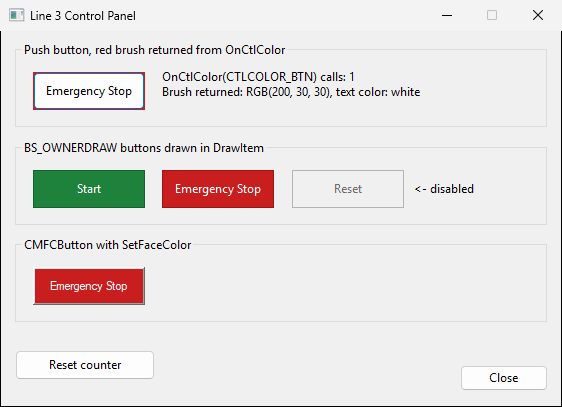
Why OnCtlColor does not work for push buttons
Before a button is painted, Windows sends its parent dialog WM_CTLCOLORBTN, which MFC delivers as OnCtlColor with nCtlColor set to CTLCOLOR_BTN. For buttons with BS_PUSHBUTTON, BS_DEFPUSHBUTTON or BS_PUSHLIKE, Windows then paints the button in the system colors and does not use the brush (WM_CTLCOLORBTN). A raised button needs several colors (face, light edge, shadow edge), and one brush cannot supply them.
In the screenshot above, the top button’s OnCtlColor ran once, yet the face is the default color and the text is black. Calling SetTextColor there only affects the focus rectangle.
OnCtlColor is still the right tool for edit boxes and static text. See the OnCtlColor background color article for those. For push buttons, pick one of the two approaches below.
| Approach | Face and text color | What you write |
|---|---|---|
Return a brush from OnCtlColor |
No change | A brush and colors that only reach the focus rectangle |
BS_OWNERDRAW and DrawItem |
Any color | A CButton subclass that also draws the pressed, disabled and focused states |
CMFCButton |
Any color | Change the member type and call two functions |
Option 1: BS_OWNERDRAW and DrawItem
With owner-draw, the application paints the whole button. You choose any color, and you also have to draw the pressed look, the disabled look and the focus rectangle yourself.
Step 1. Add BS_OWNERDRAW to the button in the .rc file. It cannot be combined with other button styles (Button Styles).
PUSHBUTTON      "Emergency Stop",IDC_BUTTON_STOP_OD,92,74,64,20,BS_OWNERDRAW
PUSHBUTTON      "Reset",IDC_BUTTON_RESET_OD,166,74,64,20,BS_OWNERDRAW | WS_DISABLED
Step 2. Derive from CButton and override DrawItem. An owner-draw button sends WM_DRAWITEM to its parent, and MFC reflects it back to the button, so CButton::DrawItem is called. The default implementation in MFC does nothing useful (it only has ASSERT(FALSE)), so you must override it. itemState tells you whether the button is pressed (ODS_SELECTED), disabled (ODS_DISABLED) or focused (ODS_FOCUS) (DRAWITEMSTRUCT).
class CColorButton : public CButton
{
public:
    CColorButton();
    void SetColors(COLORREF crFace, COLORREF crText);
    virtual void DrawItem(LPDRAWITEMSTRUCT lpDrawItemStruct);

protected:
    COLORREF m_crFace;
    COLORREF m_crText;
    DECLARE_MESSAGE_MAP()
};
static COLORREF DarkenColor(COLORREF cr)
{
return RGB(GetRValue(cr) * 3 / 4, GetGValue(cr) * 3 / 4, GetBValue(cr) * 3 / 4);
}
BEGIN_MESSAGE_MAP(CColorButton, CButton)
END_MESSAGE_MAP()
CColorButton::CColorButton()
: m_crFace(::GetSysColor(COLOR_BTNFACE))
, m_crText(::GetSysColor(COLOR_BTNTEXT))
{
}
void CColorButton::SetColors(COLORREF crFace, COLORREF crText)
{
m_crFace = crFace;
m_crText = crText;
if (GetSafeHwnd() != NULL)
Invalidate();
}
void CColorButton::DrawItem(LPDRAWITEMSTRUCT lpDrawItemStruct)
{
CDC* pDC = CDC::FromHandle(lpDrawItemStruct->hDC);
CRect rect(lpDrawItemStruct->rcItem);
const UINT nState = lpDrawItemStruct->itemState;
const BOOL bPressed = (nState & ODS_SELECTED) != 0;
const BOOL bDisabled = (nState & ODS_DISABLED) != 0;
const int nSavedDC = pDC->SaveDC();
COLORREF crFace = m_crFace;
COLORREF crText = m_crText;
if (bDisabled)
{
crFace = ::GetSysColor(COLOR_BTNFACE);
crText = ::GetSysColor(COLOR_GRAYTEXT);
}
else if (bPressed)
{
crFace = DarkenColor(m_crFace);
}
pDC->FillSolidRect(rect, crFace);
pDC->Draw3dRect(rect, DarkenColor(crFace), DarkenColor(crFace));
CString sText;
GetWindowText(sText);
CRect rectText(rect);
if (bPressed)
rectText.OffsetRect(1, 1);
pDC->SetBkMode(TRANSPARENT);
pDC->SetTextColor(crText);
pDC->DrawText(sText, rectText, DT_SINGLELINE | DT_CENTER | DT_VCENTER);
if ((nState & ODS_FOCUS) != 0 && !bDisabled)
{
CRect rectFocus(rect);
rectFocus.DeflateRect(3, 3);
pDC->SetTextColor(RGB(0, 0, 0));
pDC->SetBkColor(RGB(255, 255, 255));
pDC->DrawFocusRect(rectFocus);
}
pDC->RestoreDC(nSavedDC);
}A pressed button gets a face at three quarters of the brightness and its text moves one pixel down and right. A disabled button ignores the colors you set and uses the system face and gray text, which is the Reset button in the screenshot. DrawItem has to leave the DC as it found it (CButton::DrawItem), so SaveDC and RestoreDC bracket the drawing.
Step 3. Declare the dialog’s members as CColorButton, attach them with DDX_Control, and set the colors in OnInitDialog. If the member stays a plain CButton, the ASSERT(FALSE) in CButton::DrawItem fires in a debug build.
// PanelDlg.h
CColorButton m_btnStop;
CColorButton m_btnReset;

// PanelDlg.cpp
void CPanelDlg::DoDataExchange(CDataExchange* pDX)
{
    CDialogEx::DoDataExchange(pDX);
    DDX_Control(pDX, IDC_BUTTON_STOP_OD, m_btnStop);
    DDX_Control(pDX, IDC_BUTTON_RESET_OD, m_btnReset);
}

BOOL CPanelDlg::OnInitDialog()
{
    CDialogEx::OnInitDialog();
    m_btnStop.SetColors(RGB(200, 30, 30), RGB(255, 255, 255));
    m_btnReset.SetColors(RGB(200, 30, 30), RGB(255, 255, 255));
    return TRUE;
}
To change a color later, for example green while the line is running, call SetColors again. It invalidates the button, so the next paint uses the new colors.
Option 2: CMFCButton and SetFaceColor
If you do not want to draw the pressed and disabled states yourself, use CMFCButton (afxbutton.h). Change the member type to CMFCButton and set the colors. The button in the .rc file stays a normal PUSHBUTTON without BS_OWNERDRAW.
// PanelDlg.h
CMFCButton m_btnStopMFC;

// PanelDlg.cpp: DoDataExchange
DDX_Control(pDX, IDC_BUTTON_STOP_MFC, m_btnStopMFC);

// PanelDlg.cpp: OnInitDialog
m_btnStopMFC.SetFaceColor(RGB(200, 30, 30));
m_btnStopMFC.SetTextColor(RGB(255, 255, 255));
The button is red with white text, as in the bottom row of the screenshot. CMFCButton draws the button itself, so its edge looks a little different from a normal Windows button.
The face stays default with the Windows visual manager
The dialog-based application that the MFC wizard generates calls CMFCVisualManager::SetDefaultManager(RUNTIME_CLASS(CMFCVisualManagerWindows)) in InitInstance. With that line, CMFCButton paints the themed button over the color you set, so the face stays the default color and the white text is almost invisible. Set m_bDontUseWinXPTheme to TRUE before SetFaceColor to turn the theme off for that button.
m_btnStopMFC.m_bDontUseWinXPTheme = TRUE;
m_btnStopMFC.SetFaceColor(RGB(200, 30, 30));
m_btnStopMFC.SetTextColor(RGB(255, 255, 255));
Summary
OnCtlColorcannot change the face or text color of a push button.- For full control, set
BS_OWNERDRAW, derive fromCButtonand draw the button inDrawItem, including the pressed, disabled and focused states. - For two lines of code, use
CMFCButtonwithSetFaceColorandSetTextColor, and setm_bDontUseWinXPThemeif the application usesCMFCVisualManagerWindows.