
GDI
Draw a Bitmap with a Transparent Color in MFC Using TransparentBlt
You have a small bitmap, such as a map pin, painted on a magenta background so that the background can be dropped later. When you draw it over a floor plan with BitBlt, the magenta rectangle is drawn too. CDC::TransparentBlt takes the color to drop as its last argument and does not copy pixels of that color, so only the pin lands on the floor plan.
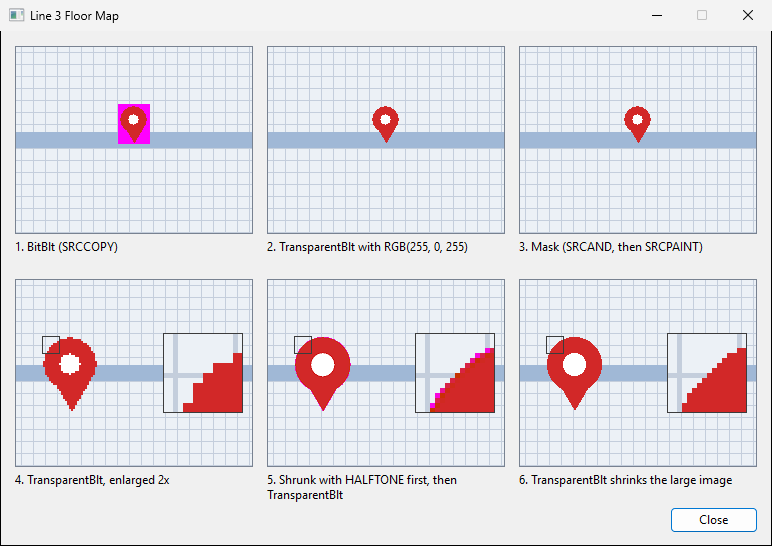
The marker bitmap is 32 × 40 with an RGB(255, 0, 255) background. Panels 1 to 3 draw it at that size, and panels 4 to 6 draw it at 64 × 80. In panels 4 to 6, the frame on the right is the small square at the marker’s top left, magnified five times.
| Panel | How it is drawn | Magenta background | Edge |
|---|---|---|---|
| 1 | BitBlt with SRCCOPY |
Drawn as a square | — |
| 2 | TransparentBlt at the same size |
Dropped | Clean |
| 3 | A mask and two BitBlt calls (SRCAND, then SRCPAINT) |
Dropped | Clean |
| 4 | TransparentBlt enlarging to 2x |
Dropped | Stair-stepped |
| 5 | Shrunk with HALFTONE first, then TransparentBlt at the same size |
Mostly dropped | Magenta and pink pixels remain |
| 6 | TransparentBlt shrinking a 4x bitmap directly |
Dropped | Stair-stepped, no leftover color |
Draw with TransparentBlt
Select the bitmap into a memory DC as you would for BitBlt, then transfer it to the target DC. TransparentBlt also takes the source width and height, and its last argument is the transparent color.
// MapDlg.h
CBitmap m_bmpMarker;    // marker bitmap with an RGB(255, 0, 255) background

// MapDlg.cpp
void CMapDlg::DrawMarkerAt(CDC* pDC, int x, int y)
{
    CDC dcSrc;
    dcSrc.CreateCompatibleDC(pDC);
    CBitmap* pOldBitmap = dcSrc.SelectObject(&m_bmpMarker);

    BITMAP bm;
    m_bmpMarker.GetBitmap(&bm);

    pDC->TransparentBlt(x, y, bm.bmWidth, bm.bmHeight,
        &dcSrc, 0, 0, bm.bmWidth, bm.bmHeight, RGB(255, 0, 255));

    dcSrc.SelectObject(pOldBitmap);
}
The arguments are the destination’s top-left corner, width and height, the source DC, the source’s top-left corner, width and height, and the color to treat as transparent (TransparentBlt). Only pixels whose value equals that color are skipped. A pixel that is close to magenta but not equal, like the pink pixels in panel 5, is drawn. Fill the bitmap’s background with exactly the value you pass.
The function itself is in Msimg32.dll, and CDC::TransparentBlt calls it directly. A Win32 program without MFC has to add Msimg32.lib to the linker input. An MFC program does not: MFC’s afx.h contains #pragma comment(lib, "msimg32.lib"), so the project links without changing its settings.
The Win32 documentation also lists these limits:
- It works with compatible bitmaps (DDBs), such as those created by
CreateCompatibleBitmap. - For a 32 bpp bitmap it only copies the alpha value. To draw with partial transparency, use AlphaBlend.
- A negative width or height does not mirror the bitmap, unlike
StretchBlt. - On a system with several monitors, the source and destination DCs must refer to the same device, or the call fails.
The older mask method with SRCAND and SRCPAINT
Older code often drops the background by building a black-and-white mask and calling BitBlt twice. Panel 3 uses this method and looks the same as panel 2.
void CMapDlg::DrawWithMask(CDC* pDC, int x, int y, CDC* pSrcDC, int cx, int cy, COLORREF crTransparent)
{
    // 1. Monochrome mask: white where the source is the transparent color, black elsewhere
    CDC dcMask;
    dcMask.CreateCompatibleDC(pDC);
    CBitmap bmpMask;
    bmpMask.CreateBitmap(cx, cy, 1, 1, NULL);
    CBitmap* pOldMask = dcMask.SelectObject(&bmpMask);

    const COLORREF crOldSrcBk = pSrcDC->SetBkColor(crTransparent);
    dcMask.BitBlt(0, 0, cx, cy, pSrcDC, 0, 0, SRCCOPY);
    pSrcDC->SetBkColor(crOldSrcBk);

    // 2. Copy of the image with the transparent color turned black
    CDC dcImage;
    dcImage.CreateCompatibleDC(pDC);
    CBitmap bmpImage;
    bmpImage.CreateCompatibleBitmap(pDC, cx, cy);
    CBitmap* pOldImage = dcImage.SelectObject(&bmpImage);

    dcImage.BitBlt(0, 0, cx, cy, pSrcDC, 0, 0, SRCCOPY);
    dcImage.SetBkColor(RGB(0, 0, 0));
    dcImage.SetTextColor(RGB(255, 255, 255));
    dcImage.BitBlt(0, 0, cx, cy, &dcMask, 0, 0, SRCAND);

    // 3. Black out the marker shape on the destination, then OR the image into it
    const COLORREF crOldBk = pDC->SetBkColor(RGB(255, 255, 255));
    const COLORREF crOldText = pDC->SetTextColor(RGB(0, 0, 0));
    pDC->BitBlt(x, y, cx, cy, &dcMask, 0, 0, SRCAND);
    pDC->BitBlt(x, y, cx, cy, &dcImage, 0, 0, SRCPAINT);
    pDC->SetTextColor(crOldText);
    pDC->SetBkColor(crOldBk);

    dcImage.SelectObject(pOldImage);
    dcMask.SelectObject(pOldMask);
}
The code depends on how GDI converts between color and monochrome bitmaps (StretchBlt). From color to monochrome, pixels that match the background color (SetBkColor) become white and all others black. From monochrome to color, white becomes the background color and black becomes the text color (SetTextColor). The colors of the color DC are the ones used.
- In step 1, the source DC’s background color is the transparent color, so the mask is white where the magenta was and black where the marker is.
- In step 2, the image copy has a black background color and a white text color, so the mask’s white turns black and its black turns white before the AND. Only the magenta area of the copy becomes black. The marker keeps its colors.
- In step 3, the destination has a white background color and a black text color. The AND keeps the floor plan where the mask is white and makes the marker shape black. The OR with the copy from step 2 (
SRCPAINT) fills that black shape with the marker’s colors, and the copy’s black area leaves the floor plan unchanged.
If any of these colors is wrong, you get a black rectangle or inverted colors. In new code, one TransparentBlt call does the same job. Existing code that uses the mask method can stay as it is.
Leftover edge pixels after scaling
When the source and destination rectangles differ in size, TransparentBlt stretches or shrinks the source to fit.
// Draw a 128 x 160 marker bitmap at 64 x 80
pDC->TransparentBlt(x, y, 64, 80, &dcSrc, 0, 0, 128, 160, RGB(255, 0, 255));
Panels 4 (32 × 40 enlarged to 64 × 80) and 6 (128 × 160 shrunk to 64 × 80) both drop the background. When the destination DC’s stretch mode is BLACKONWHITE (the default) or WHITEONBLACK, TransparentBlt uses COLORONCOLOR instead (SetStretchBltMode). That mode does not blend neighboring pixels, so the edge is stair-stepped but contains no mixed colors.
Panel 5 starts from the same 128 × 160 bitmap. It is first shrunk to 64 × 80 with StretchBlt in HALFTONE mode, then drawn with TransparentBlt at the same size. HALFTONE averages neighboring pixels, so pixels along the edge become a mix of the marker’s red and the magenta background. Those colors are not exactly RGB(255, 0, 255), so they are not skipped, and pink and near-magenta pixels remain around the circle. A bitmap drawn on magenta with anti-aliased edges in a paint program has the same mixed pixels, even without scaling.
To keep colored pixels off the edge:
- Do not shrink the bitmap in advance. Pass the original to
TransparentBltand let it scale (panel 6). The edge stays stair-stepped. - Prepare the bitmap at the size you display it, with edge pixels that are not mixed with the transparent color, and draw it at 1:1 (panel 2).
- For a smooth edge, use a 32-bit bitmap with an alpha channel and draw it with
AlphaBlendinstead of using a transparent color.
Summary
- Pass the background color as the last argument of
CDC::TransparentBlt. MFC already links Msimg32.lib. - The mask method with
SRCANDandSRCPAINTgives the same result but depends on the background and text colors of three DCs. - Pixels mixed with the transparent color by
HALFTONEscaling or anti-aliasing are drawn. LetTransparentBltscale the original, or useAlphaBlend.