
GDI
Draw a Semi-Transparent Bitmap in MFC with AlphaBlend
CDC::AlphaBlend draws a bitmap so that the background shows through it. To fade the whole bitmap evenly, SourceConstantAlpha in BLENDFUNCTION is enough. To blend only a round shape, or to give it a soft edge, you need a 32-bit bitmap with an alpha value for each pixel and the AC_SRC_ALPHA flag. If the colors are not multiplied by alpha, the edge gets colors that are not in the image. Text drawn with GDI after the alpha is set ends up with alpha 0, and the background shows through it.
Six ways to draw the same badge
Each panel draws a yellow warning badge (72 × 72 pixels, a black “!” in the middle, a soft edge) over a grid that is light in the top half and dark in the bottom half.
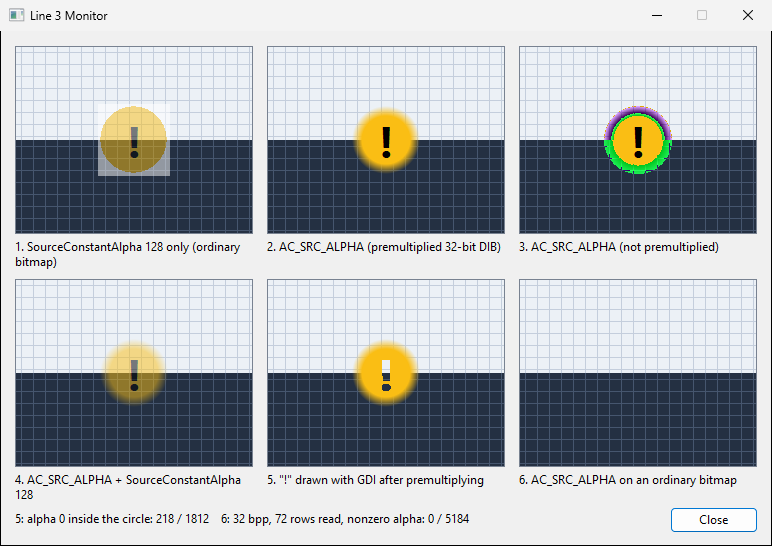
| Panel | Bitmap | BLENDFUNCTION |
Result |
|---|---|---|---|
| 1 | Ordinary bitmap from CreateCompatibleBitmap: white square, yellow circle, “!” |
SourceConstantAlpha 128, AlphaFormat 0 |
Faded at half strength, white square included |
| 2 | 32-bit DIB: color and “!” drawn with GDI, then per-pixel alpha set and multiplied into the colors | SourceConstantAlpha 255, AC_SRC_ALPHA |
Only the circle, with a soft edge |
| 3 | Same as 2, but the colors are not multiplied by alpha | SourceConstantAlpha 255, AC_SRC_ALPHA |
Purple and green ring on the edge |
| 4 | Same bitmap as 2 | SourceConstantAlpha 128, AC_SRC_ALPHA |
Round and faded |
| 5 | 32-bit DIB: alpha set and multiplied first, then “!” drawn with GDI | SourceConstantAlpha 255, AC_SRC_ALPHA |
The grid shows through the “!” |
| 6 | Same bitmap as 1 | SourceConstantAlpha 255, AC_SRC_ALPHA |
Nothing is drawn |
Use panel 1’s method to fade a rectangular image, and panel 2’s method to blend a shape.
Fade the whole bitmap with SourceConstantAlpha
Put a strength from 0 to 255 in SourceConstantAlpha and set AlphaFormat to 0. The bitmap can be an ordinary one created with CreateCompatibleBitmap.
BLENDFUNCTION bf;
bf.BlendOp = AC_SRC_OVER;
bf.BlendFlags = 0;
bf.SourceConstantAlpha = 128;   // 0 = transparent, 255 = opaque
bf.AlphaFormat = 0;             // no per-pixel alpha

CDC dcSrc;
dcSrc.CreateCompatibleDC(pDC);
CBitmap* pOldBitmap = dcSrc.SelectObject(&m_bmpOpaque);

pDC->AlphaBlend(x, y, s_cxBadge, s_cyBadge,
    &dcSrc, 0, 0, s_cxBadge, s_cyBadge, bf);

dcSrc.SelectObject(pOldBitmap);
With AlphaFormat 0, each of red, green, and blue is computed like this (BLENDFUNCTION):
Dst = Src * (SCA / 255) + Dst * (1 - SCA / 255) // SCA = SourceConstantAlphaEvery pixel uses the same ratio, so the white square around the badge is blended too, as in panel 1. For a rectangular overlay, such as dimming a window or tinting a selected area, that is all you need.
The function itself is in Msimg32.dll, and CDC::AlphaBlend calls it directly. MFC’s afx.h contains #pragma comment(lib, "msimg32.lib"), so an MFC project links without changing its settings. A Win32 program without MFC has to add Msimg32.lib to the linker input.
Blend a shape with AC_SRC_ALPHA and premultiplied alpha
To draw only the circle and fade its edge, the bitmap has to carry an alpha (opacity) value for each pixel, and AlphaFormat has to be AC_SRC_ALPHA. Two conditions apply:
- The source bitmap must be 32 bpp. Otherwise
AlphaBlendfails. AlphaBlendexpects premultiplied alpha. Before the call, each of red, green, and blue must be multiplied by that pixel’s alpha and divided by 0xff.
Create a 32-bit DIB with CreateDIBSection so that you can write the pixel values yourself. Draw the color and the “!” with GDI first, then set the alpha and multiply it into the colors.
#include <math.h>

static const int s_cxBadge = 72;
static const int s_cyBadge = 72;
static const double s_dSolidRadius = 24.0;
static const double s_dEdgeRadius = 34.0;
static const COLORREF s_crBadge = RGB(250, 190, 20);

// Opaque up to s_dSolidRadius from the center, then fades to 0 at s_dEdgeRadius
static BYTE CalcBadgeAlpha(int x, int y)
{
    const double dx = x + 0.5 - s_cxBadge / 2.0;
    const double dy = y + 0.5 - s_cyBadge / 2.0;
    const double dRadius = sqrt(dx * dx + dy * dy);

    if (dRadius <= s_dSolidRadius)
        return 255;
    if (dRadius >= s_dEdgeRadius)
        return 0;
    return (BYTE)(255.0 * (s_dEdgeRadius - dRadius) / (s_dEdgeRadius - s_dSolidRadius) + 0.5);
}

static DWORD* CreateBadgeDIB(CBitmap& bmp)
{
    BITMAPINFO bmi;
    ZeroMemory(&bmi, sizeof(bmi));
    bmi.bmiHeader.biSize = sizeof(BITMAPINFOHEADER);
    bmi.bmiHeader.biWidth = s_cxBadge;
    bmi.bmiHeader.biHeight = -s_cyBadge;    // negative height: rows run top to bottom
    bmi.bmiHeader.biPlanes = 1;
    bmi.bmiHeader.biBitCount = 32;
    bmi.bmiHeader.biCompression = BI_RGB;

    void* pBits = NULL;
    HBITMAP hBitmap = ::CreateDIBSection(NULL, &bmi, DIB_RGB_COLORS, &pBits, NULL, 0);
    ENSURE(hBitmap != NULL);
    bmp.Attach(hBitmap);
    return (DWORD*)pBits;
}

// Adds alpha to the colors drawn with GDI. If bPremultiply is TRUE, also multiplies the colors by alpha
static void ApplyBadgeAlpha(DWORD* pdwBits, BOOL bPremultiply)
{
    GdiFlush();

    for (int y = 0; y < s_cyBadge; y++)
    {
        for (int x = 0; x < s_cxBadge; x++)
        {
            DWORD& dwPixel = pdwBits[y * s_cxBadge + x];
            const DWORD dwAlpha = CalcBadgeAlpha(x, y);
            DWORD dwRed = (dwPixel >> 16) & 0xFF;
            DWORD dwGreen = (dwPixel >> 8) & 0xFF;
            DWORD dwBlue = dwPixel & 0xFF;
            if (bPremultiply)
            {
                dwRed = dwRed * dwAlpha / 255;
                dwGreen = dwGreen * dwAlpha / 255;
                dwBlue = dwBlue * dwAlpha / 255;
            }
            dwPixel = (dwAlpha << 24) | (dwRed << 16) | (dwGreen << 8) | dwBlue;
        }
    }
}

// In CMonitorDlg::CreateBadgeBitmaps(), called from OnInitDialog:
// draw the color and "!" with GDI, then add alpha and premultiply
DWORD* pdwBits = CreateBadgeDIB(m_bmpPremultiplied);
dcBadge.SelectObject(&m_bmpPremultiplied);
dcBadge.FillSolidRect(0, 0, s_cxBadge, s_cyBadge, s_crBadge);
DrawMark(&dcBadge);     // DrawText(_T("!"), ...) in black, 44 px bold Segoe UI
ApplyBadgeAlpha(pdwBits, TRUE);
One pixel of a 32-bit DIB is one DWORD, holding alpha, red, green, and blue from the high byte down. GDI may still be drawing into the bitmap when your code reads the bits, so call GdiFlush before touching them (CreateDIBSection).
In OnPaint, draw the bitmap with AC_SRC_ALPHA and SourceConstantAlpha 255, which means “use only the per-pixel alpha”:
BLENDFUNCTION bf;
bf.BlendOp = AC_SRC_OVER;
bf.BlendFlags = 0;
bf.SourceConstantAlpha = 255;
bf.AlphaFormat = AC_SRC_ALPHA;

CDC dcSrc;
dcSrc.CreateCompatibleDC(pDC);
CBitmap* pOldBitmap = dcSrc.SelectObject(&m_bmpPremultiplied);

pDC->AlphaBlend(x, y, s_cxBadge, s_cyBadge,
    &dcSrc, 0, 0, s_cxBadge, s_cyBadge, bf);

dcSrc.SelectObject(pOldBitmap);
Colors not multiplied by alpha leave a colored ring
With AC_SRC_ALPHA and SourceConstantAlpha 255, the blend assumes that the source color already has the alpha multiplied in:
Dst = Src + (1 - SrcAlpha / 255) * DstPanel 3 sets the alpha but skips the multiplication (ApplyBadgeAlpha(pdwBits, FALSE)). Where the edge is half transparent, the full yellow value is still added, and the result goes over 255. On the light background, green becomes 190 + 241 × 0.5 = 310. The light half shows a purple ring and the dark half a green one. The documentation does not say what happens to values above 255. The colors on screen look as if the overflow wrapped around toward 0.
An image loaded from a PNG file or a similar source may store its colors without alpha multiplied in. Multiply them the same way before passing them to AlphaBlend.
Keep the shape and fade it as well
AC_SRC_ALPHA and SourceConstantAlpha work together. Panel 4 draws the bitmap from panel 2 with SourceConstantAlpha 128. The source’s color and alpha are both multiplied by SourceConstantAlpha / 255 first, and then blended with the formula above, so the round shape and soft edge stay while the whole badge fades. This is useful for blinking or fading out an indicator.
GDI drawing after the alpha is set has alpha 0
Panel 5 reverses the order: it sets and multiplies the alpha first and then calls DrawText to draw the “!”. The grid shows through the “!”. Inside the circle, where the alpha had been set to 255, 218 of 1,812 pixels had alpha 0 after DrawText, where the “!” was drawn.
A pixel with color 0 and alpha 0 leaves the destination unchanged in the formula above, so the background shows. GDI text and line drawing on a 32-bit DIB can write 0 into the alpha byte. Draw text and lines before you set the alpha, as in panel 2.
Panel 6 draws panel 1’s ordinary bitmap with AC_SRC_ALPHA. AlphaBlend returned TRUE, but nothing appeared. The bitmap from CreateCompatibleBitmap was 32 bpp here because the screen is 32-bit, but reading it back with GetDIBits showed alpha 0 in all 5,184 pixels. On a screen with fewer colors, the bitmap is not 32 bpp at all, and AlphaBlend fails under the first condition above. Use AC_SRC_ALPHA only for a bitmap whose alpha you set yourself.
When AlphaBlend fails, and scaling
The AlphaBlend documentation also lists these rules:
- A negative width or height makes the call fail. Unlike
StretchBlt, it cannot mirror. - The source rectangle must lie completely within the source bitmap.
- If the source and destination are the same surface (both the screen, or the same memory bitmap) and the rectangles overlap, the call fails.
- If the rectangles differ in size, the source is stretched. A stretch mode set with
SetStretchBltMode, includingHALFTONE, is treated asCOLORONCOLOR. - For a printer, call
GetDeviceCapswithSHADEBLENDCAPSfirst to find out whether it supports blending.
To drop a single background color instead of blending, see Draw a Bitmap with a Transparent Color in MFC Using TransparentBlt.
Summary
- To fade a whole bitmap evenly, draw an ordinary bitmap with
SourceConstantAlphaonly. - To blend a shape, create a 32-bit DIB with
CreateDIBSection, multiply the colors by alpha, and draw withAC_SRC_ALPHA. - Do GDI drawing before you set the alpha, and call
GdiFlushbefore writing the pixels.