
Dialogs
OnCtlColor in MFC: Change the Background and Text Color of Edit and Static Controls
You want the Email box in a dialog to turn red when the address is wrong, and a status line under it to show the result on a colored band. CEdit and CStatic have no method that sets their colors. Instead, each control asks its parent dialog for colors every time it paints, and the dialog answers in OnCtlColor.
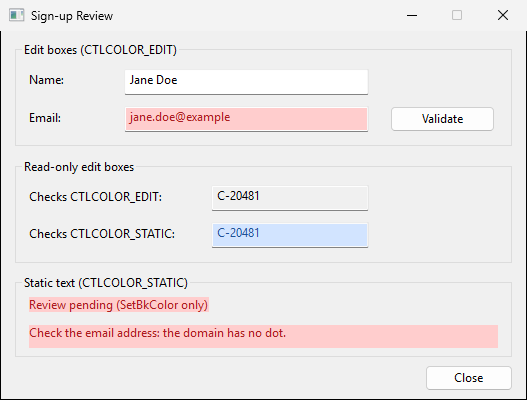
How the colors reach the control
Just before an edit box paints, it sends WM_CTLCOLOREDIT to its parent. A static control sends WM_CTLCOLORSTATIC. The message carries the control’s device context, and the parent can set the text color and text background color on it. The brush that the parent returns is used to paint the control’s background (WM_CTLCOLOREDIT, WM_CTLCOLORSTATIC).
MFC routes these messages, and the other WM_CTLCOLOR* messages, to one handler, CWnd::OnCtlColor. pDC is the control’s device context, pWnd is the control, and nCtlColor says which message arrived:
nCtlColor |
Sent by |
|---|---|
CTLCOLOR_EDIT |
An edit box that is neither read-only nor disabled |
CTLCOLOR_STATIC |
Static text, and read-only or disabled edit boxes |
CTLCOLOR_LISTBOX |
A list box |
CTLCOLOR_DLG |
The dialog itself |
CTLCOLOR_BTN |
A button |
Push buttons are painted in system colors whatever you return. See MFC Button Color Not Changing with OnCtlColor for those.
Add the handler
Declare the handler and the brushes in the dialog class. The brushes are members because the control uses the returned brush after OnCtlColor has returned. A CBrush created as a local variable would be deleted at the end of the function.
// ReviewDlg.h
class CReviewDlg : public CDialogEx
{
    // ...
protected:
    enum EmailState { emailNotChecked, emailValid, emailInvalid };

    CBrush m_brError;
    CBrush m_brInfo;
    CBrush m_brOk;
    EmailState m_emailState;

    afx_msg HBRUSH OnCtlColor(CDC* pDC, CWnd* pWnd, UINT nCtlColor);
    DECLARE_MESSAGE_MAP()
};
Add ON_WM_CTLCOLOR() to the message map and create the brushes once in OnInitDialog. Without the message map entry, your OnCtlColor is never called and the controls keep their default colors. CBrush deletes its brush in its destructor, so the brushes are freed when the dialog object goes away.
// ReviewDlg.cpp
static const COLORREF s_crErrorBk = RGB(255, 205, 205);
static const COLORREF s_crErrorText = RGB(170, 30, 30);
static const COLORREF s_crInfoBk = RGB(210, 228, 255);
static const COLORREF s_crInfoText = RGB(30, 80, 150);
static const COLORREF s_crOkBk = RGB(210, 240, 215);
static const COLORREF s_crOkText = RGB(30, 110, 50);

BEGIN_MESSAGE_MAP(CReviewDlg, CDialogEx)
    ON_WM_CTLCOLOR()
    // ...
END_MESSAGE_MAP()

CReviewDlg::CReviewDlg(CWnd* pParent /*=NULL*/)
    : CDialogEx(IDD_REVIEW_DIALOG, pParent)
    , m_emailState(emailNotChecked)
{
}

BOOL CReviewDlg::OnInitDialog()
{
    CDialogEx::OnInitDialog();

    m_brError.CreateSolidBrush(s_crErrorBk);
    m_brInfo.CreateSolidBrush(s_crInfoBk);
    m_brOk.CreateSolidBrush(s_crOkBk);
    // ...
}
In OnCtlColor, call the base class first so that every control you do not handle keeps its normal colors. Then pick out your control with GetDlgCtrlID() and nCtlColor, set the colors, and return your brush.
HBRUSH CReviewDlg::OnCtlColor(CDC* pDC, CWnd* pWnd, UINT nCtlColor)
{
    HBRUSH hbr = CDialogEx::OnCtlColor(pDC, pWnd, nCtlColor);
    const int nID = pWnd->GetDlgCtrlID();

    // Edit box: red while the email is invalid.
    if (nID == IDC_EDIT_EMAIL && nCtlColor == CTLCOLOR_EDIT
        && m_emailState == emailInvalid)
    {
        pDC->SetTextColor(s_crErrorText);
        pDC->SetBkColor(s_crErrorBk);
        return (HBRUSH)m_brError.GetSafeHandle();
    }

    return hbr;
}
The Email box in the screenshot is drawn by this branch: red text, and pink from edge to edge.
SetBkColor and the brush color the background in different places
SetBkColor sets the color drawn behind each character. The brush you return fills the rest of the control. If you set only one of them, the control shows two colors.
The Static text group in the screenshot shows the difference. Both lines set the same text color and SetBkColor. The first line returns the base class brush, so it is pink only behind the letters and the dialog gray everywhere else. The second line returns a pink brush and fills the whole control.
// Static text with SetBkColor but the default brush.
if (nID == IDC_STATIC_BKONLY && nCtlColor == CTLCOLOR_STATIC)
{
    pDC->SetTextColor(s_crErrorText);
    pDC->SetBkColor(s_crErrorBk);
    return hbr;
}
Create the brush with the same COLORREF that you pass to SetBkColor, as the Email branch above does with s_crErrorBk, and the control has one color.
A read-only edit box sends CTLCOLOR_STATIC
An edit box with ES_READONLY, or one that is disabled, does not send WM_CTLCOLOREDIT. It sends WM_CTLCOLORSTATIC, so nCtlColor is CTLCOLOR_STATIC. A branch that checks for CTLCOLOR_EDIT never runs for it.
// Read-only edit box checked as CTLCOLOR_EDIT: this branch never runs.
if (nID == IDC_EDIT_ID_EDITCHECK && nCtlColor == CTLCOLOR_EDIT)
{
    // ...
}

// Read-only edit box checked as CTLCOLOR_STATIC: this one is colored.
if (nID == IDC_EDIT_ID_STATICCHECK && nCtlColor == CTLCOLOR_STATIC)
{
    pDC->SetTextColor(s_crInfoText);
    pDC->SetBkColor(s_crInfoBk);
    return (HBRUSH)m_brInfo.GetSafeHandle();
}
In the screenshot, both read-only boxes show the same customer ID. The first stays gray and the second is light blue. If an edit box switches between editable and read-only at run time, check its ID only, or accept both values of nCtlColor.
A disabled edit box takes your background color, but its text is always drawn in the system gray text color (COLOR_GRAYTEXT). SetTextColor has no effect on it.
Change the color at run time
OnCtlColor runs only when the control paints. Changing a member variable does not repaint anything, so the control keeps the old color until it is repainted for some other reason. After you change the state that OnCtlColor reads, call Invalidate on the controls whose color depends on it.
void CReviewDlg::ValidateEmail()
{
    CString sEmail;
    GetDlgItemText(IDC_EDIT_EMAIL, sEmail);

    const int nAt = sEmail.Find(_T('@'));
    const int nDot = (nAt > 0) ? sEmail.Find(_T('.'), nAt + 1) : -1;
    const bool bValid = nDot > nAt + 1 && nDot < sEmail.GetLength() - 1;

    m_emailState = bValid ? emailValid : emailInvalid;
    SetDlgItemText(IDC_STATIC_STATUS, bValid
        ? _T("Email OK. Ready to send the confirmation.")
        : _T("Check the email address: the domain has no dot."));

    // The colors are read only when the control paints, so ask for a repaint.
    GetDlgItem(IDC_EDIT_EMAIL)->Invalidate();
    GetDlgItem(IDC_STATIC_STATUS)->Invalidate();
}
Until the first validation, m_emailState is emailNotChecked, so neither the Email branch nor the status branch matches and both controls have their default colors. One second after the dialog opens, the sample runs this validation once, the same as clicking Validate, and both turn pink as in the screenshot. When the address is valid, m_emailState becomes emailValid, the Email branch no longer matches, and the box goes back to the colors from the base class.
The status line uses the same idea with two brushes:
// Static text with SetBkColor and a brush of the same color.
if (nID == IDC_STATIC_STATUS && nCtlColor == CTLCOLOR_STATIC
    && m_emailState != emailNotChecked)
{
    const bool bValid = m_emailState == emailValid;
    pDC->SetTextColor(bValid ? s_crOkText : s_crErrorText);
    pDC->SetBkColor(bValid ? s_crOkBk : s_crErrorBk);
    return (HBRUSH)(bValid ? m_brOk : m_brError).GetSafeHandle();
}